Conference & devices
Besides watching the stream, you can take part in the room's video conference, share your screen and choose which camera, microphone and speakers to use.
Joining the conference
When you enter a room, Farbstrom asks how you want to take part. Camera + Microphone joins the conference with both, Microphone only joins with your voice but no camera, and Watch only shows the stream without using your camera or microphone. Your choice is remembered for the next time.
Controls
The toolbar has buttons to turn your camera on and off (A), to mute and unmute your microphone (S) and to share your screen with the room. If push to talk is on, you hold the microphone button or S to talk. The full list of shortcuts is in Keyboard shortcuts.
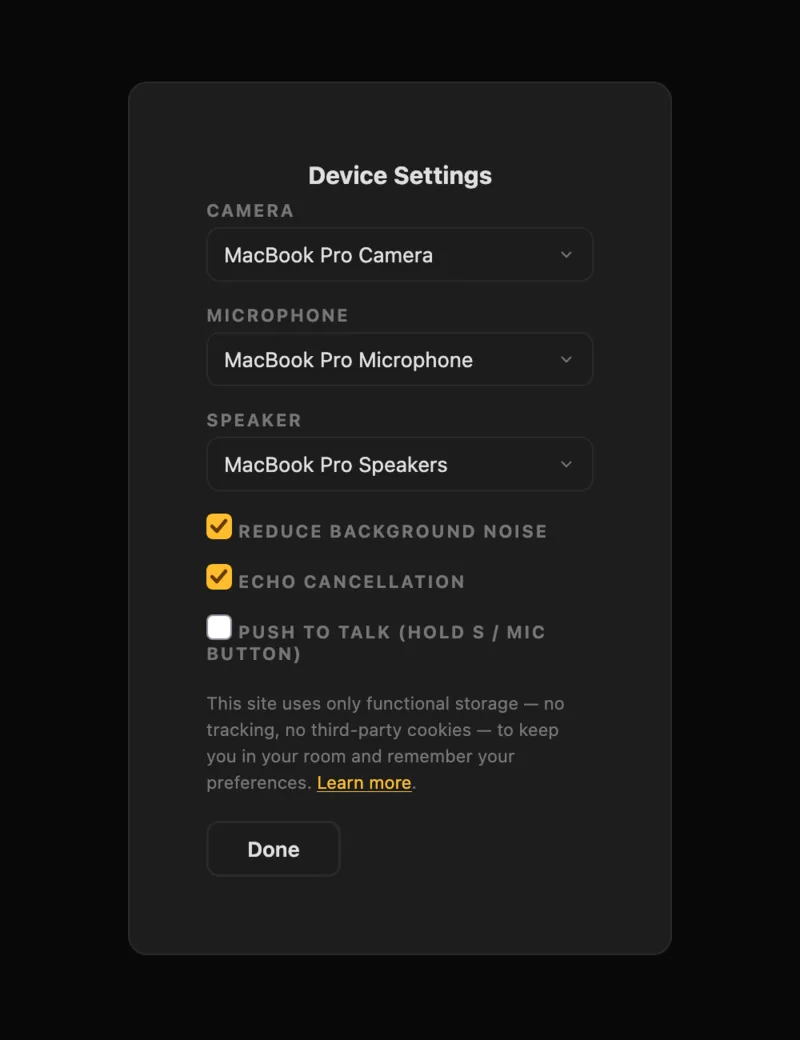
Device settings
Devices lets you choose your camera, microphone and speakers. It also has three options. Reduce background noise filters out noise around you, Echo cancellation prevents echo and feedback, and Push to talk keeps your microphone muted until you hold S or the microphone button.
The host can set these options per room, but whatever you choose on your own device takes priority.
Participants
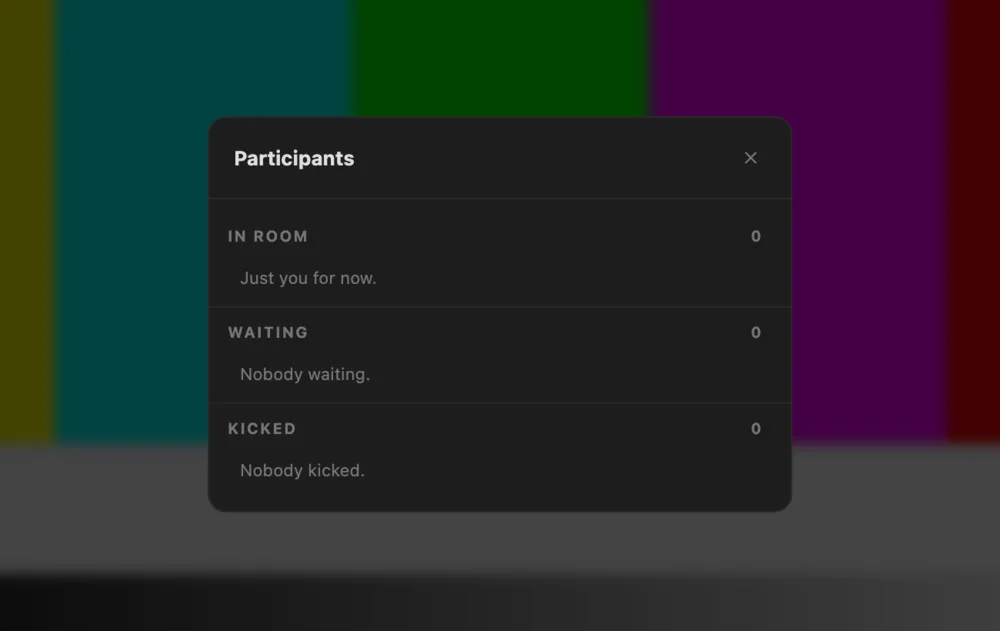
Clicking the participant count in the top bar opens the Participants list. It shows everyone in the room, each with a dot that shows the quality of their connection. Hovering over the dot shows what it means.
Hosts see two more groups in the list. Waiting shows the people held by the waiting room, who can be admitted one at a time with Admit or together with Admit all. Kicked shows the people who have been removed, and Unblock lets them back in.
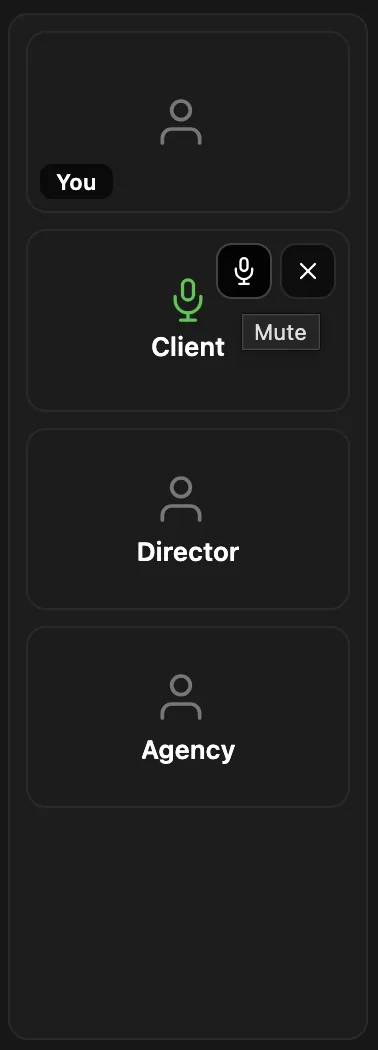
Hosts can mute or remove a participant from their tile, or remove them with Kick in the list.
Connection
If the room feels unstable, click the connection status next to the room name in the top bar (Connected). This opens the Connection panel, which shows:
- Your connection: an overall rating such as Excellent, your round trip time, and whether the room link and the conference are connected.
- Video: where the picture comes from, its codec, resolution and frame rate, and whether it is playing.
- Room: for hosts, the connection rating of every participant.
- This session: how many times the room link dropped, the conference reconnected or playback had an error.
- Recent events: a log with the time of each event, for example Video stalled and Video recovered.
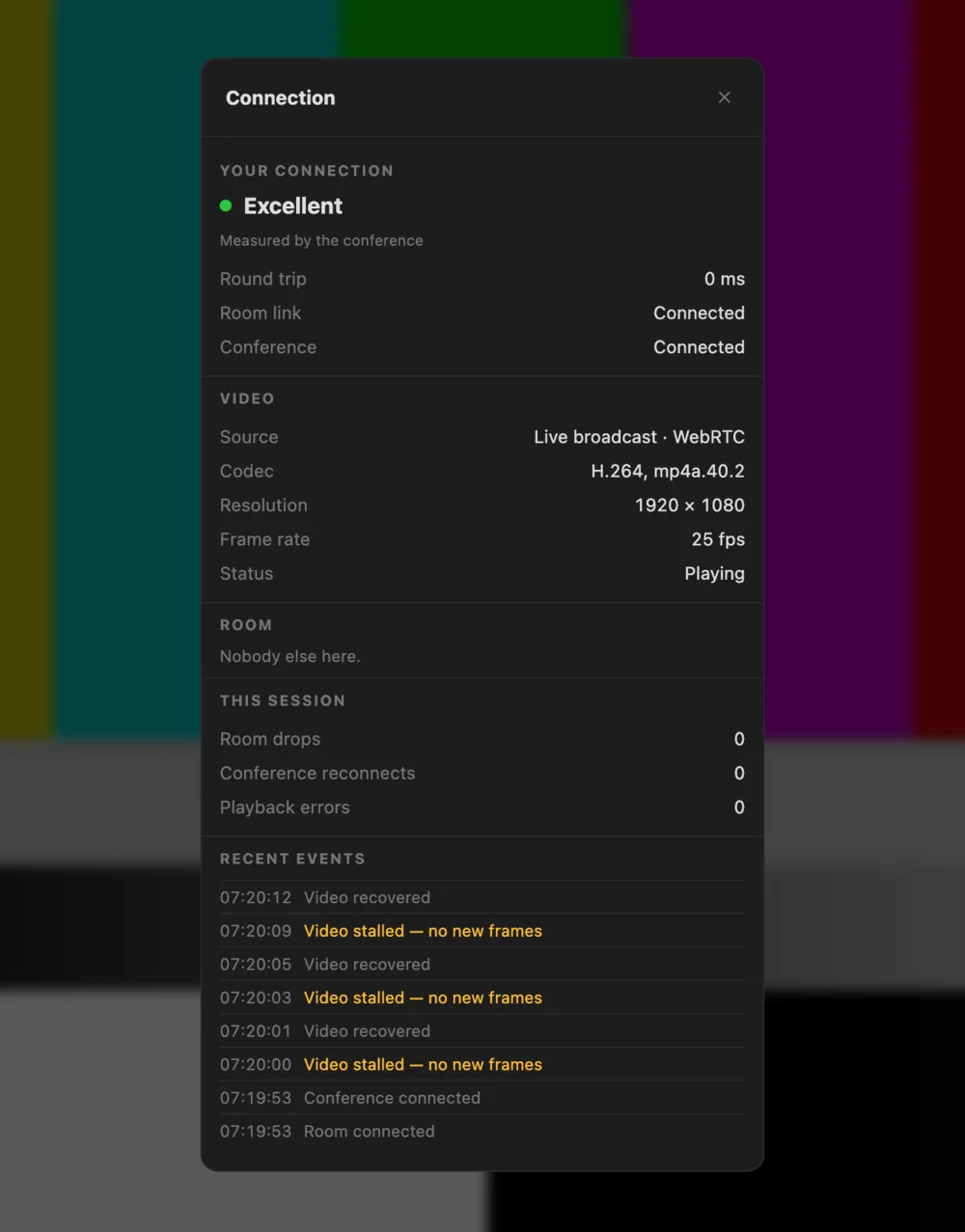
The panel keeps recording for the whole session and not only while it is open. If someone tells you the picture froze a few minutes ago, you can open the panel and check the log.
Farbstrom also detects when a connection has died without closing properly, for example when the Wi-Fi drops or a laptop lid is closed, and reconnects within about 15 seconds.