Dashboard
The Dashboard tab shows the health of the server and every stream that is currently live.
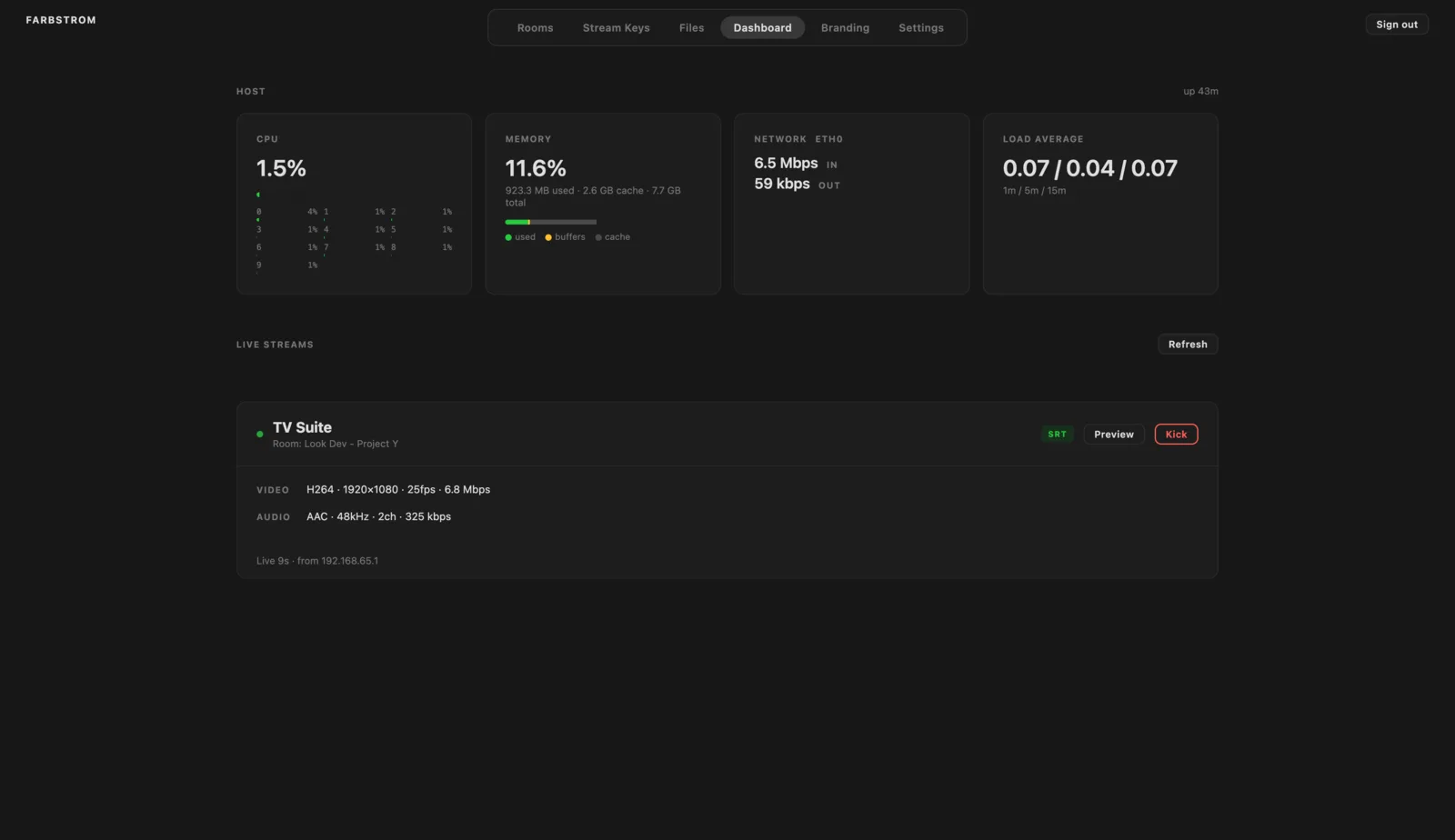
Host metrics
The top of the page shows the CPU load with a breakdown per core, the memory usage split into used, buffers and cache, the network throughput in and out, and the load average over 1, 5 and 15 minutes. The server uptime is shown in the top right corner.
Live streams
Every live stream has its own card with the streamkey name, the room it is feeding and the protocol it arrived on, for example SRT. The card also shows the video codec, resolution, frame rate and bitrate, the audio codec, sample rate, channels and bitrate, how long the stream has been live and the IP address it is coming from. Refresh updates the list.
OME Logs
Below the live streams there is a collapsible OME Logs section with the most recent lines of the OvenMediaEngine log, the streaming engine Farbstrom runs on. This is the first place to look if an encoder can't connect or a stream behaves unexpectedly. The list can be filtered to show All levels, Warnings and errors or Errors only. Warnings are shown in amber and errors in red.
While the section is open it refreshes together with the stream list and follows the newest lines, unless you scroll up to read older ones. Refresh updates it straight away. Farbstrom remembers whether the section was open and which filter you picked.
Preview a stream
Preview lets you watch a stream inside the admin without joining a room. This is useful to check that an encoder is sending the right picture before your clients arrive. The preview starts muted.
Kick a stream
Kick disconnects the encoder, which is useful to free up a slot or to cut off a source that shouldn't be streaming. It also blocks the streamkey, so an encoder that is set to reconnect automatically can't come back. To let it stream again, click Allow ingest on the streamkey in Stream keys.