Getting started
This page goes through the steps from signing in to running a live session. It assumes Farbstrom is already deployed and that you have the admin password. Throughout the documentation, <host> stands for your Farbstrom domain, for example stream.yourdomain.com.
1. Sign in
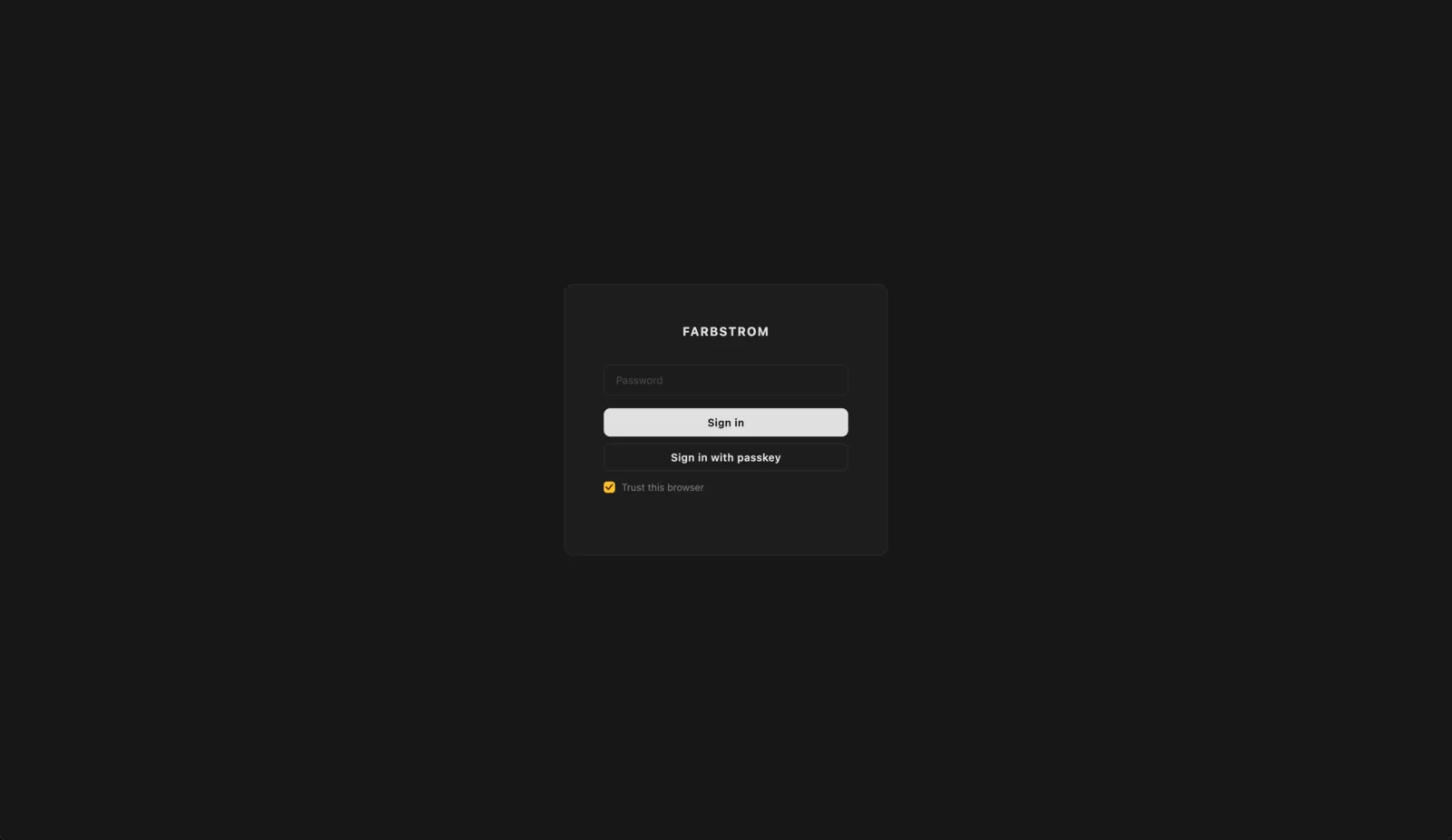
Open https://<host>/admin and enter your admin password. If you have set up two-factor authentication or a passkey you will be asked for it as well, see Settings. If you are on a computer you control, you can tick Trust this browser so you stay signed in for 90 days instead of 7.
2. Create a streamkey
The streamkey is what your encoder uses to send video to Farbstrom. Open the Stream Keys tab, click + New Key and give it a name, for example Main Suite. The key's card shows the ingest URLs you will need in step 4. There is more detail in Stream keys.
3. Create a room
Open the Rooms tab, click + New Room and give the room a name, for example Client Review - Project X. Select the streamkey you created in step 2. If you leave the streamkey set to None, the room runs in call mode with the conference only and no stream.
Choose the delivery mode. WebRTC has sub-second latency and is the best choice for SDR review, while LLHLS is needed for HDR and works on more devices (see HDR review).
The start time, expiry time, password, waiting room and audio defaults are all optional. If you set a start time, anyone who opens the link early sees a countdown and is let in automatically when the session starts.
When you save, the room appears as a card with its links. Every option is explained in Rooms.
4. Connect your encoder
The Stream Keys tab lists the full ingest URL for every protocol next to your key, so you can copy the one you need into your encoder without editing it. SRT is recommended as it has the lowest latency and passes H.265 through untouched, and RTMP works as a fallback for encoders that don't support SRT. The setup steps and recommended settings are in Encoders and OBS Studio.
5. Go live
Start streaming from your encoder. The room goes live within a few seconds and the stream shows up on the Dashboard with its bitrate, resolution and duration.
6. Share the room
Each room card has two links. The Viewer link (https://<host>/watch/<slug>) is the one you send to participants. You can click it to copy it, or use Share room to write the invite and either open it in your mail app or copy it for a messaging app (see Share a room). The Host link gives presenter controls, so only share it with co-hosts using Copy host link.
If the room has a password, send it separately or include it in the Share room invite.
7. Admit and moderate
If the waiting room is on, people wait in the Participants panel on the room card until you admit them, either one at a time or all at once. During the session you can mute or remove anyone from inside the room.
8. End the room
If the room has an expiry time it ends by itself at that time, and everyone in it sees a "session has ended" screen. If you want to close it sooner, click Delete on the room card. This ends the session and removes the room permanently, see Ending a room.
Next steps
- Rooms explains every room option in depth.
- Encoders covers the ingest protocols and encoder setup.
- Joining a room describes what participants see.