OBS Studio
OBS Studio is the most common encoder used with Farbstrom.
You don't need to build the ingest URLs yourself, as the Stream keys tab in the admin lists the full URL for every protocol next to each streamkey. Copy the one you need and paste it into OBS.
SRT (recommended, H.265 passthrough)
- In OBS, open Settings → Stream.
- Set Service to Custom….
- In Server, paste the SRT URL from the Stream Keys tab (
srt://<host>:9999?streamid=default/live/<STREAM_KEY>). - Leave Stream Key empty, as the streamkey is already part of the
streamid. - Click OK and then Start Streaming.
To send H.265 (HEVC), set Settings → Output → Streaming → Video Encoder to an HEVC encoder, for example NVIDIA NVENC HEVC or x265. SRT keeps the H.265 stream intact from end to end.
RTMP (most compatible)
- In OBS, open Settings → Stream.
- Set Service to Custom….
- In Server, paste the RTMP server URL from the Stream Keys tab (
rtmp://<host>:1935/live). - In Stream Key, paste your
<STREAM_KEY>, which is also shown in the Stream Keys tab. - Click OK and then Start Streaming.
Recommended encoder settings
In Settings → Output, set Output Mode to Advanced and use the Streaming tab. The settings depend on whether you are sending SDR in H.264 or HDR in H.265.
SDR (H.264)
Use x264 (software) on macOS, or NVIDIA NVENC on PC and Linux. On macOS you should avoid the hardware accelerated Apple H264 encoder, as its quality is objectively worse, with strong compression artifacts and banding, especially in low light or fast moving sequences. x264 is the best option for H.264.
| Setting | Value |
|---|---|
| Rate Control | CBR |
| Bitrate | 6000 Kbps |
| Keyframe Interval | 1 s |
| CPU Usage Preset | faster |
| Profile | high |
| Tune | zerolatency |
| x264 Options | bframes=0 |
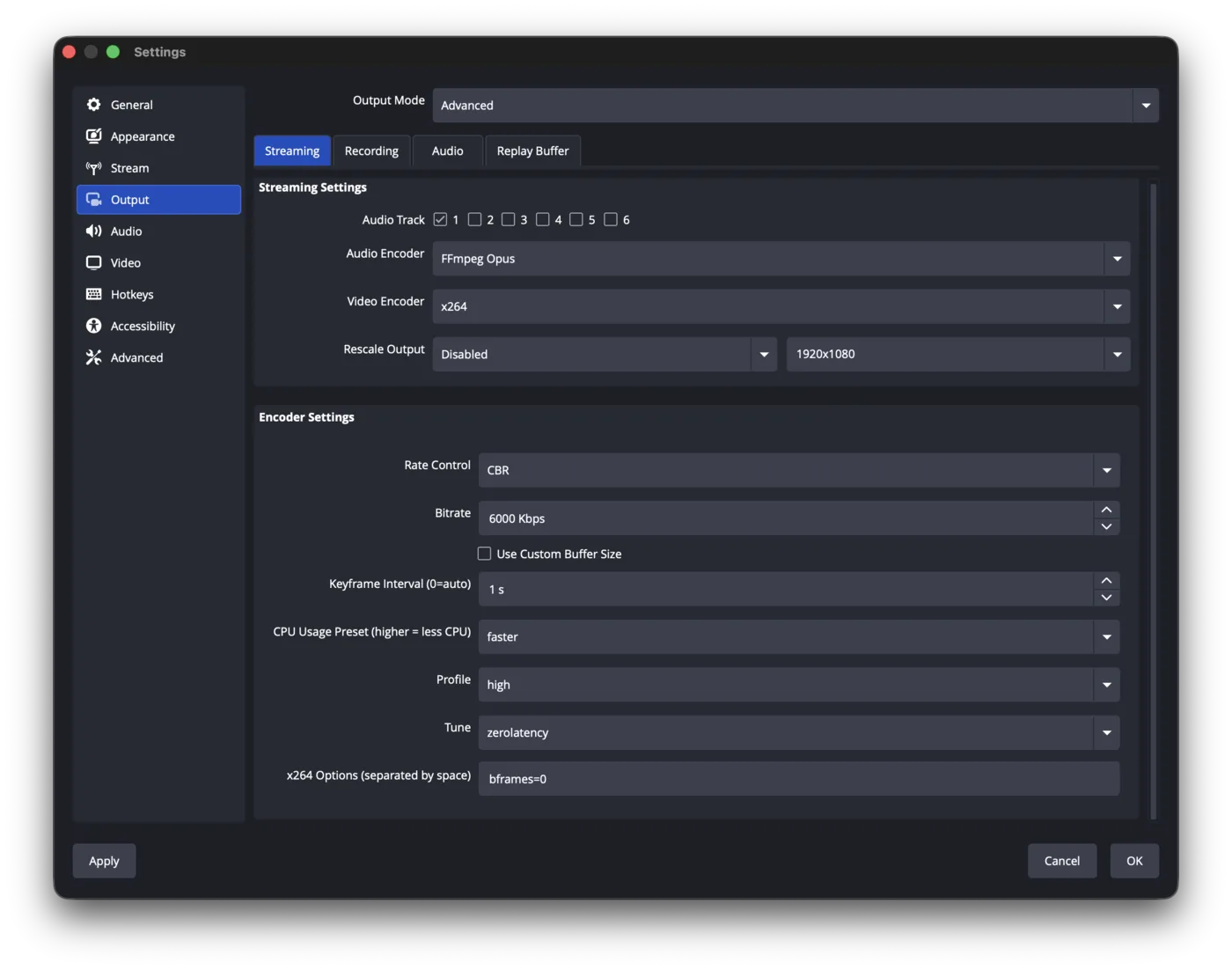
Disable B-frames for WebRTC
WebRTC playback breaks up and stutters when B-frames are on. With x264 the bframes=0 option above turns them off, and with NVENC you set Max B-frames to 0.
HDR (H.265)
HDR review needs H.265 (HEVC). On macOS use the Apple VT HEVC Hardware Encoder. Unlike with H.264, the Apple hardware encoder is the right choice here, as it outputs the 10-bit 4:2:2 signal that HDR needs. On PC and Linux, use NVENC HEVC.
| Setting | Value |
|---|---|
| Video Encoder | Apple VT HEVC Hardware Encoder |
| Rate Control | CBR |
| Bitrate | 6000 Kbps |
| Keyframe Interval | 1 s |
| Profile | main 4:2:2 10 |
| Use B-Frames | off |
| Spatial AQ | Disabled |
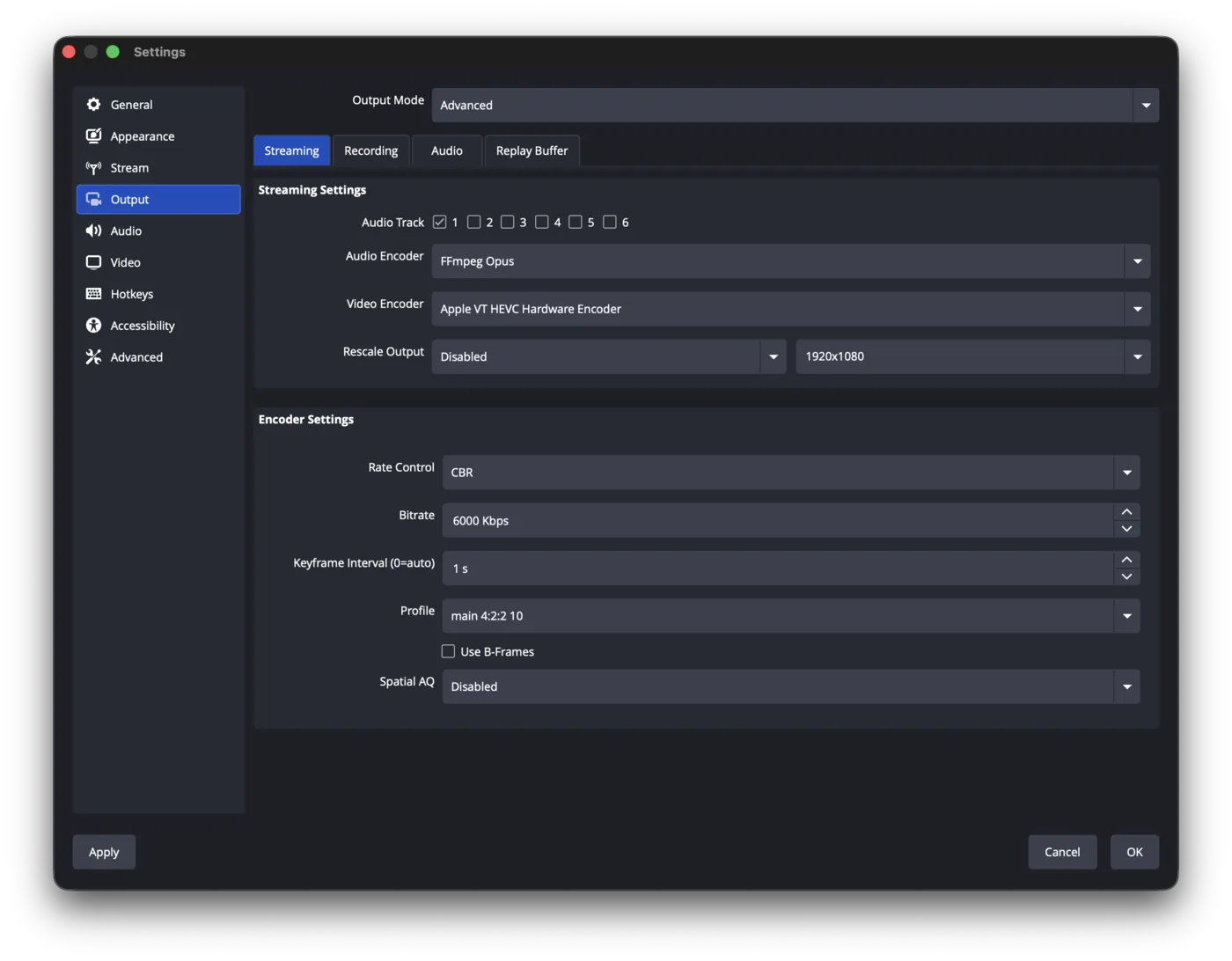
The HDR color pipeline is then set in Settings → Advanced → Video:
| Setting | Value |
|---|---|
| Renderer | Metal |
| Color Format | P216 (16-bit, 4:2:2) |
| Color Space | Rec. 2100 (PQ) |
| Color Range | Full |
| SDR White Level | 100 nits |
| HDR Nominal Peak Level | 1000 nits |
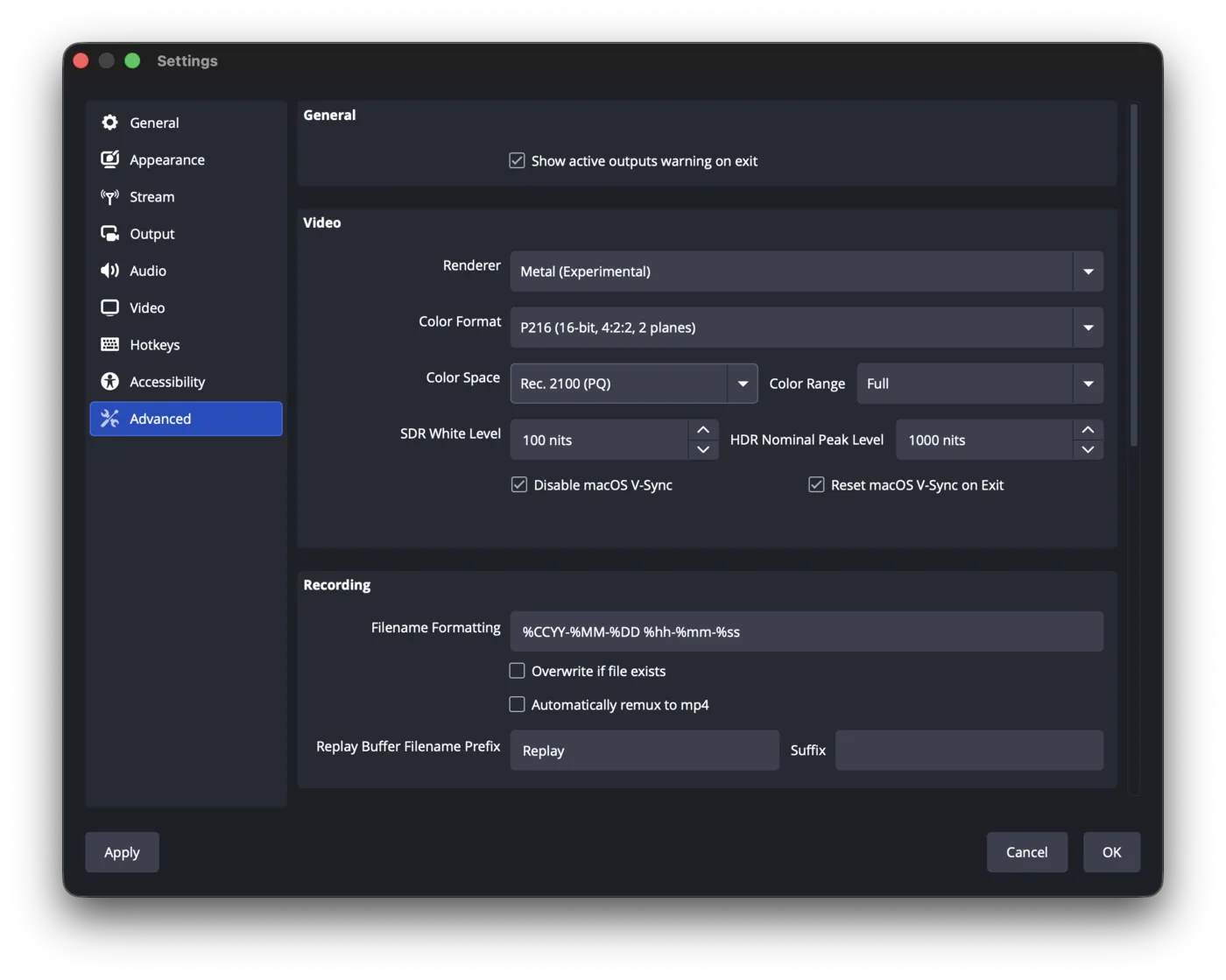
Capture device
If your source is a Blackmagic DeckLink or UltraStudio, its device settings have to be configured manually for HDR, as OBS won't do it for you. Match the color space and HDR settings of the device to your incoming signal.
Send the HDR stream over SRT and set the room's delivery mode to LLHLS so the HDR picture reaches Apple HDR browsers, see HDR review.
Confirming you're live
Once you are streaming, the room that uses this streamkey shows as live, and the stream appears on the admin Dashboard with its bitrate, resolution and duration.